Installation
Learn how to install Bookmark UniSync in different ways across various browsers.
Part 1: Store Online Installation
Chrome Browser Installation
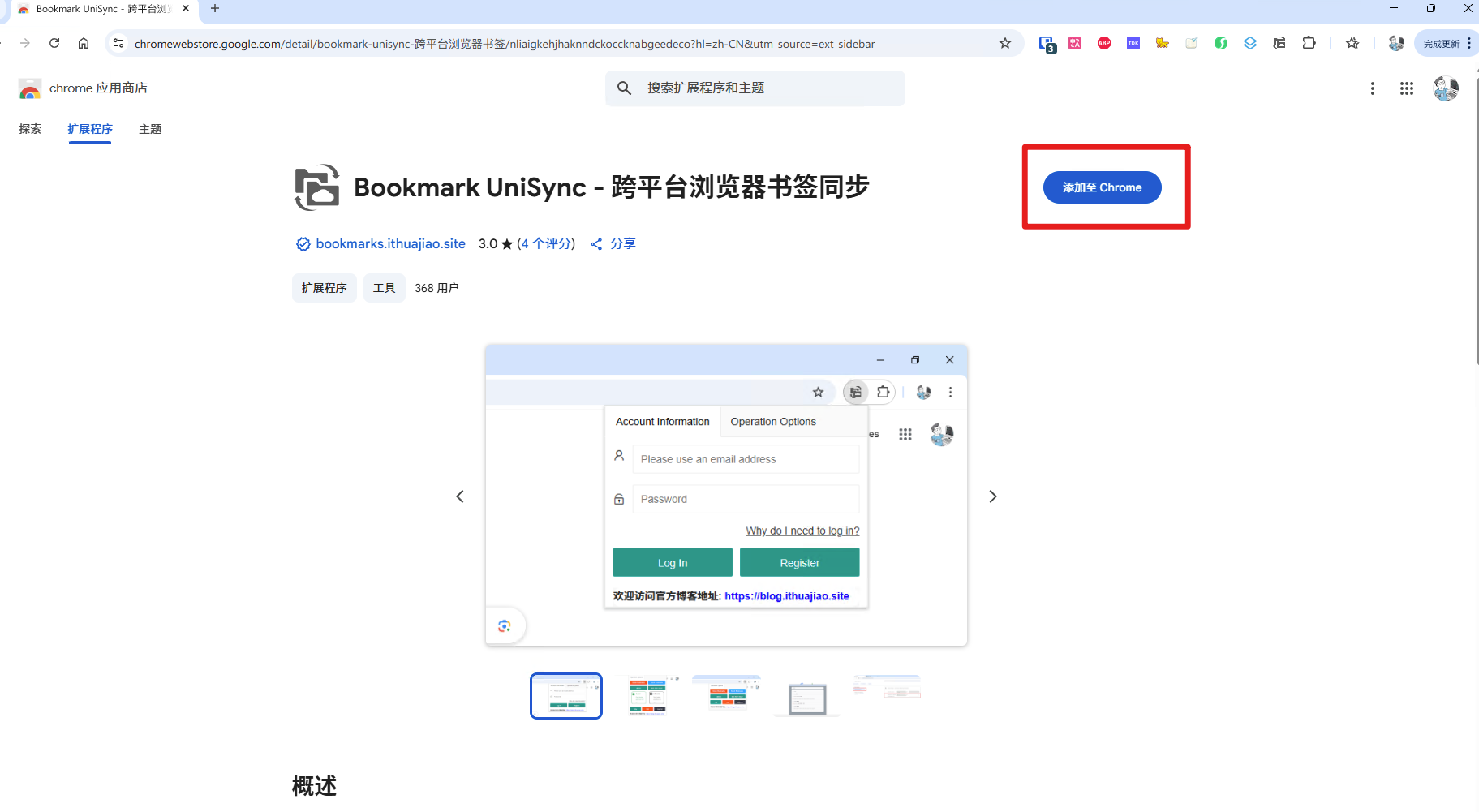
1. Click the image below to go directly to the store

2. On the opened page, click the "Add to Chrome" button
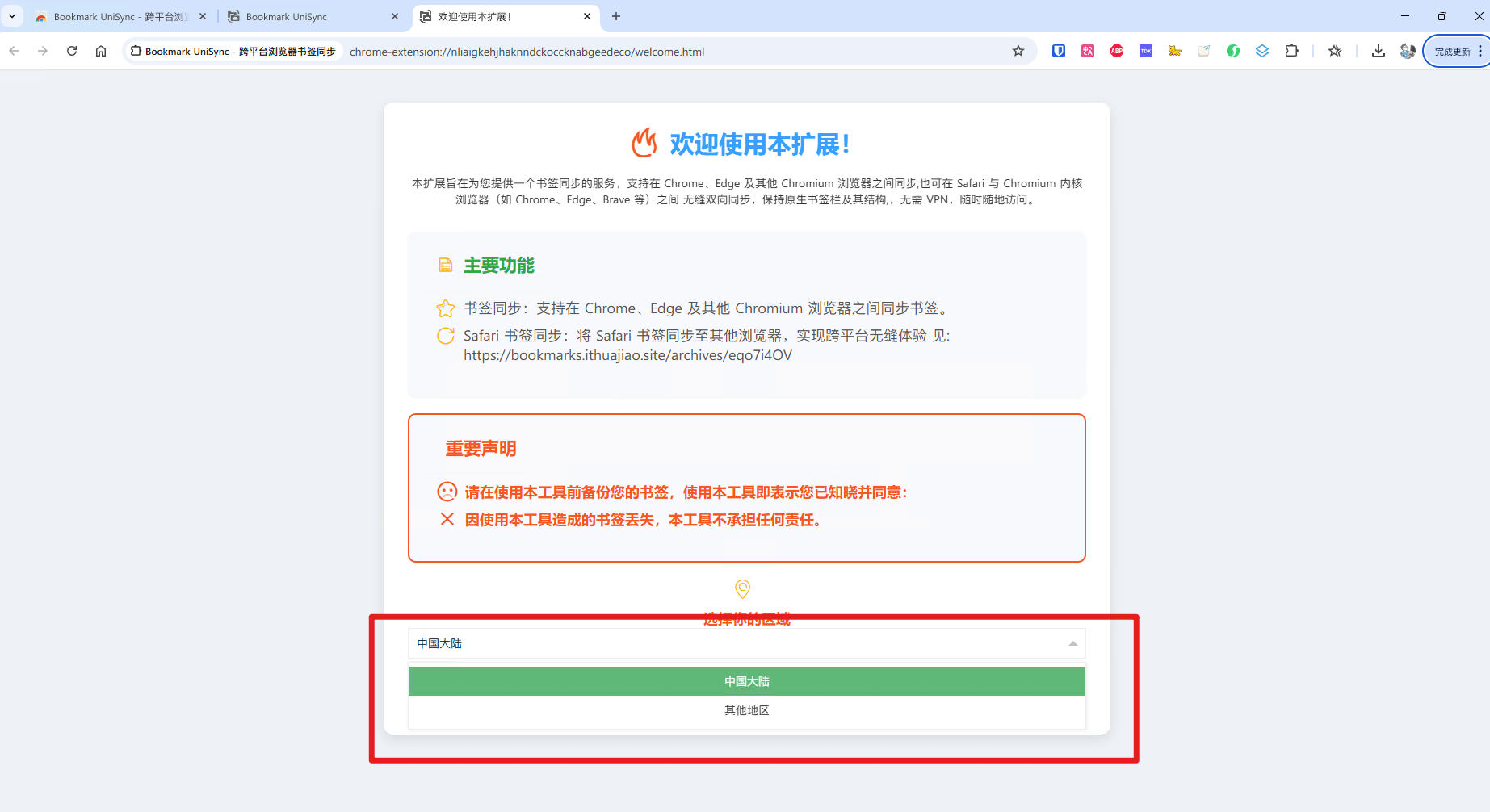
2.1. Select the region closest to your current location for service:
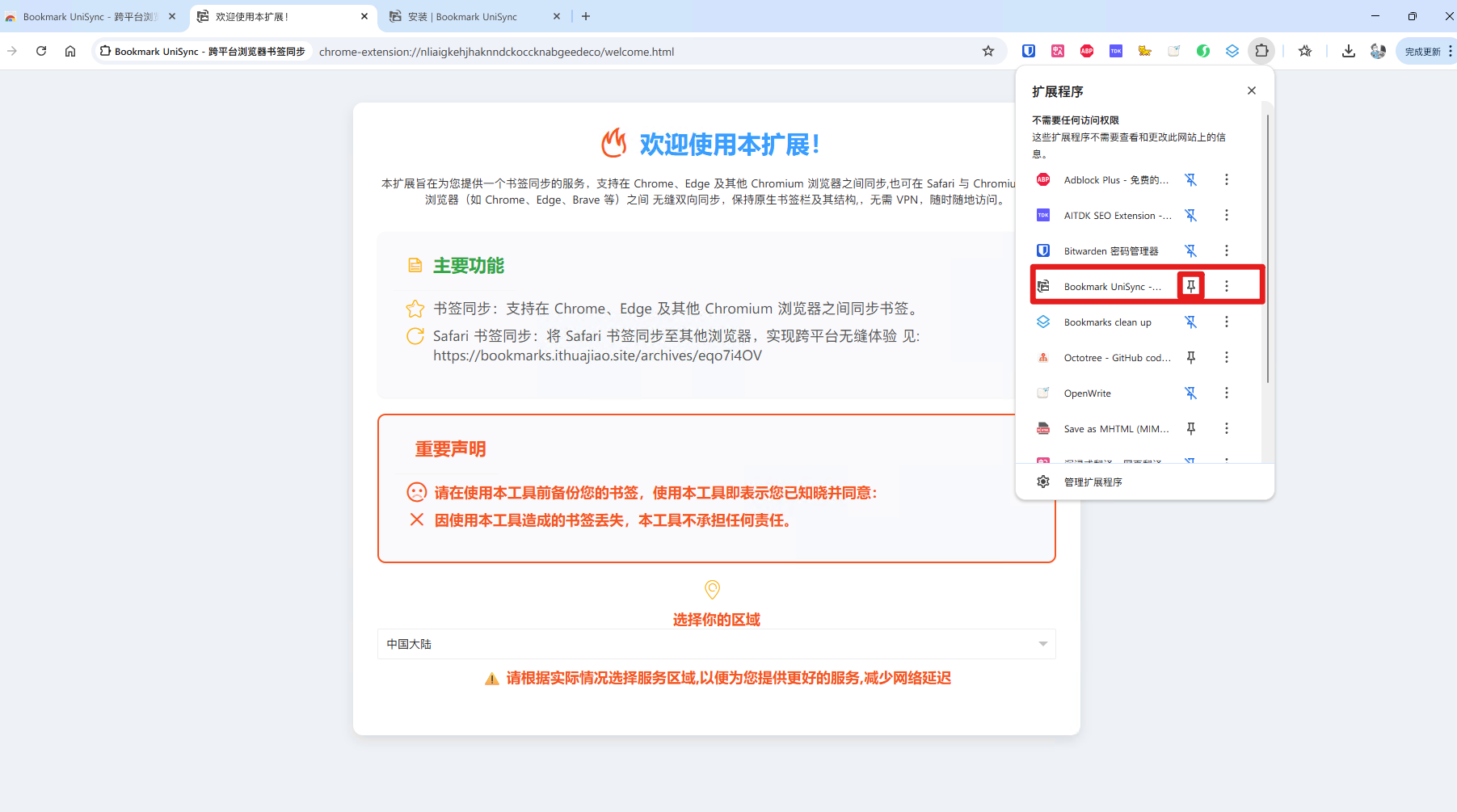
2.2. You can choose to keep it in the browser extension bar:
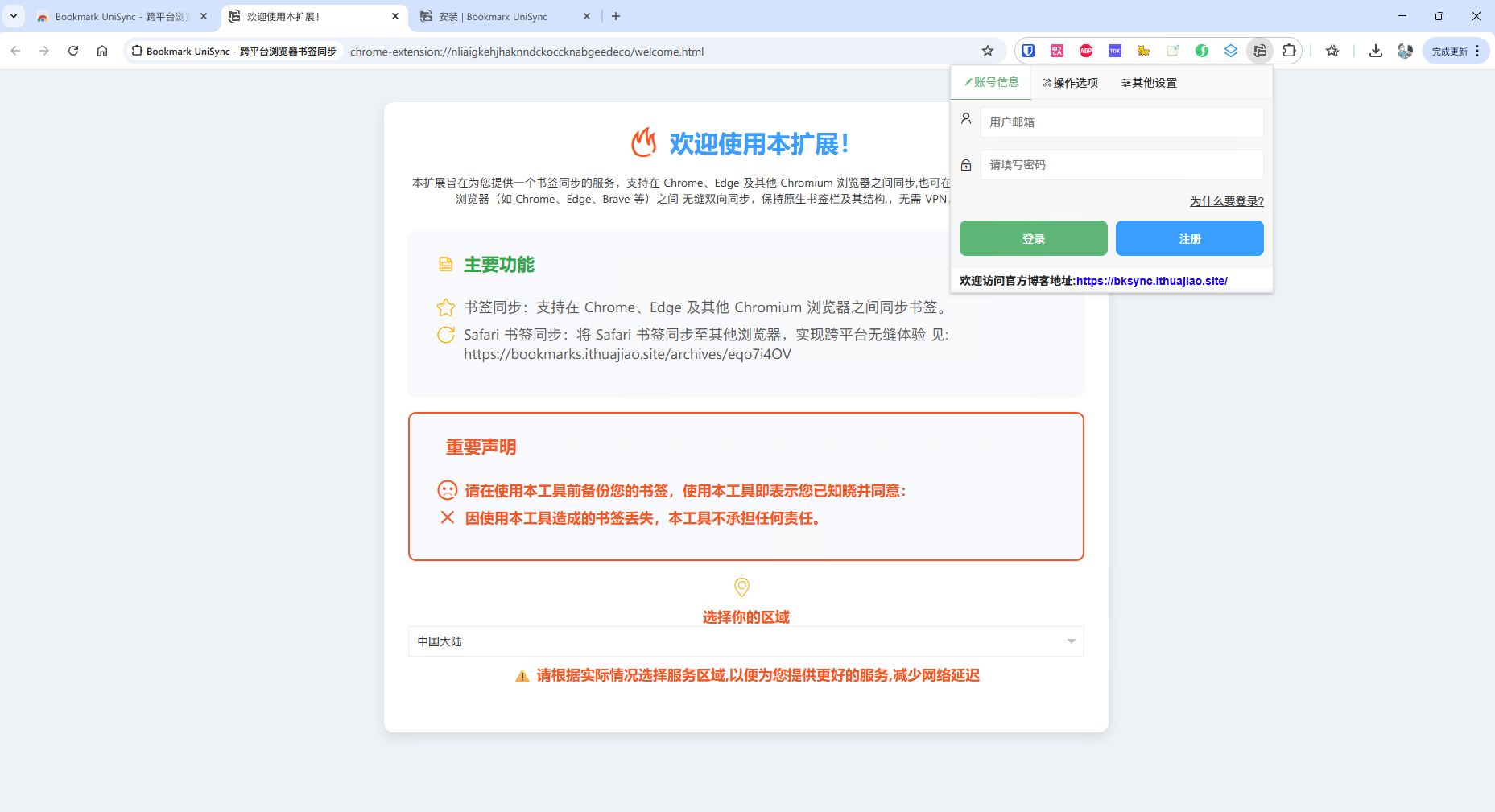
4. After installation is complete, you will see the extension icon in the top right corner of your browser
Edge Browser Installation
1. Click the image below to go directly to the store

2. For other steps, please refer to the Chrome installation tutorial
Part 2: Offline Installation (For cases where official stores are inaccessible)
Chrome Browser Offline Installation Steps
1. Download the offline installation package
2.1 Open the Extensions Center at: chrome://extensions/
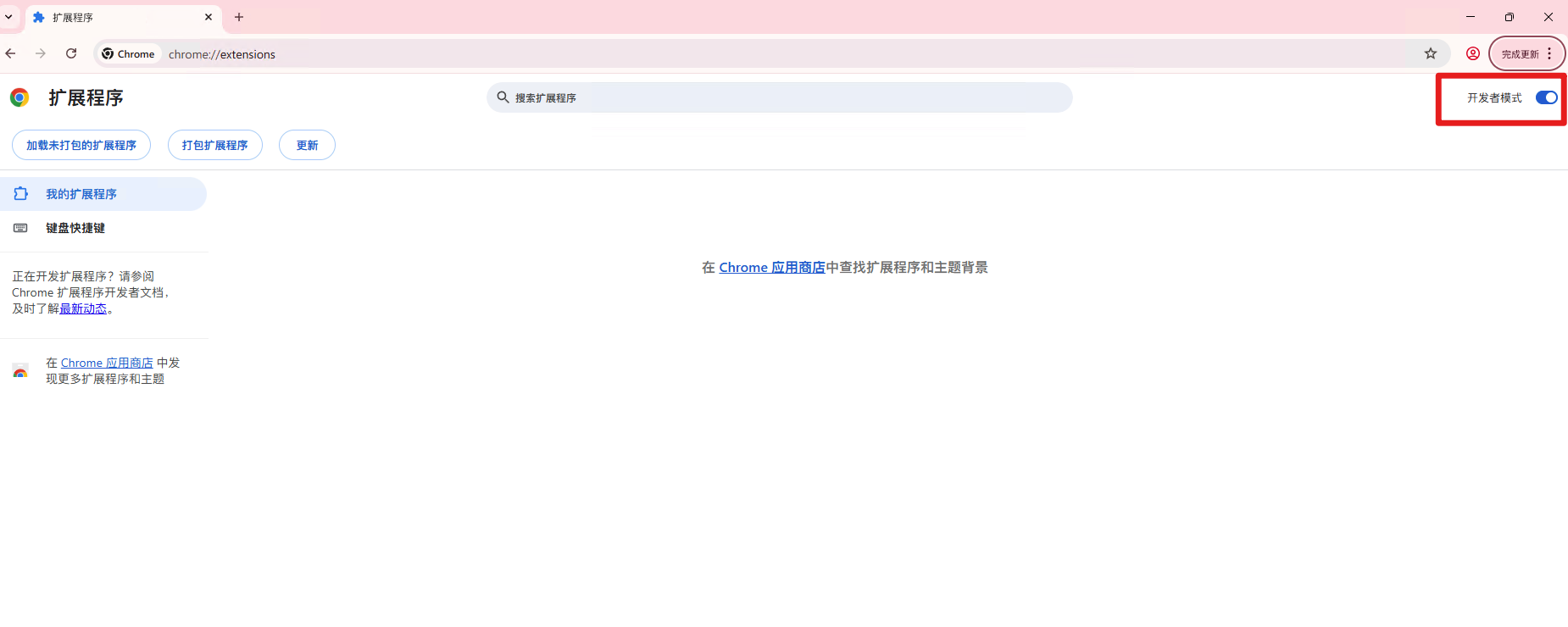
2.2. Or click the three dots in the top right corner of the browser > More tools > Extensions
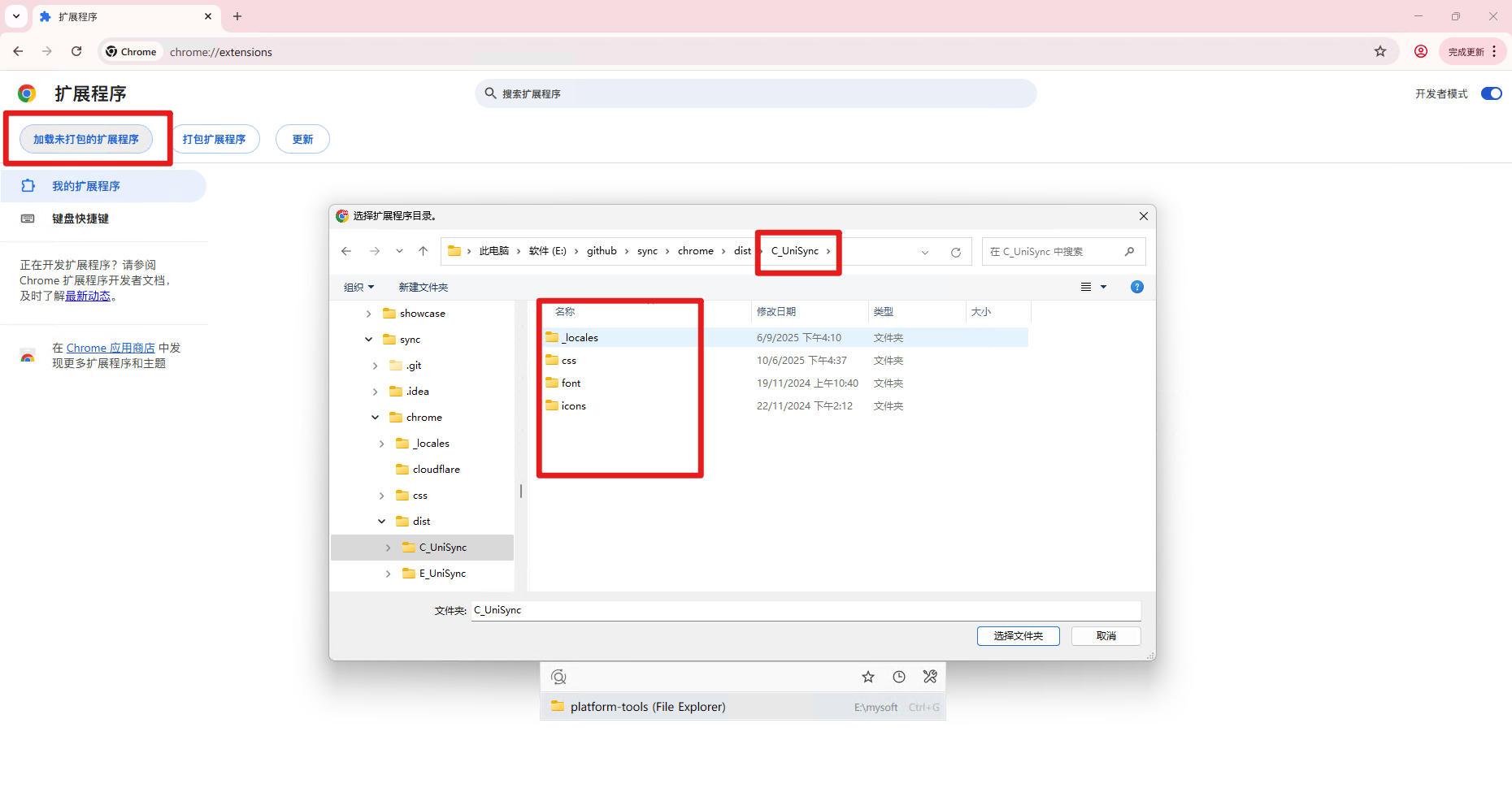
3. Click "Load unpacked" and select the downloaded folder
Edge Browser Offline Installation Steps
1. Download the offline installation package
2.1 Open the Extensions Center at: edge://extensions/
3. For other steps, please refer to the Chrome offline installation
Important Notes
• When installing offline, please ensure you download extension files from trusted sources
• After installation, the extension may need permission to access certain websites. Please grant permissions as needed
• If you encounter installation issues, try restarting your browser and reinstalling
Need Help?
If you encounter any issues during installation, please contact us through the following methods:
• Send an email to: support@ithuajiao.site
Hope this tutorial helps you! After installation is complete, you can start using various features of our extension.