Delete Local
Clean up local data through Bookmark UniSync for pure synchronization
📋 Why Delete Local Bookmarks?
| Reason | Detailed Description |
|---|---|
| 🗑️ Clean Local Data | Delete all local bookmarks in the browser, freeing up storage space |
| ☁️ Pure Sync | Prepare for complete bookmark synchronization from the server, avoiding conflicts |
| 🔄 Reorganize | Keep local bookmarks completely consistent with the server |
⚠️ Important Safety Tips
Safety Guarantee
- ✅ Won't affect server bookmarks: Bookmarks uploaded to the server remain safe and intact
- ✅ Won't affect backup files: Exported bookmark backup files are not affected
- ⚠️ Local bookmarks will be permanently deleted: Please ensure important bookmarks are backed up before proceeding
📝 Operation Steps
Step 1: Enter Bookmark Management Interface
- Click the extension icon in the upper right corner of the browser
- Select "Bookmark Management" or "Sync Settings"
- Click the "Delete Local Bookmarks" option
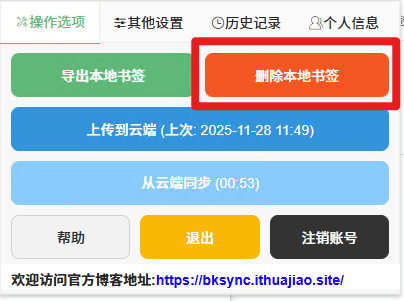
Step 2: Confirm Operation (Important!)
The system will display a confirmation window with the following information:
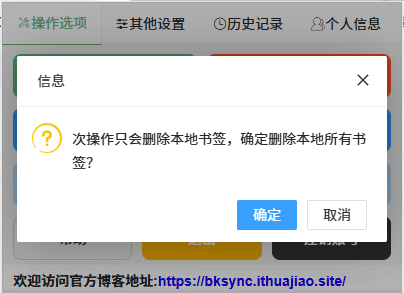
| Confirmation Window Content | Description |
|---|---|
| 📊 Bookmark Count Display | Example: "Will delete 156 local bookmarks" |
| 🔒 Safety Reminder | "This operation will not affect server bookmarks" "Please ensure important bookmarks are backed up" |
| 🎯 Operation Options | 🔴 Confirm Delete - Execute deletion operation 🔵 Cancel - Safe exit |
Step 3: Execute Deletion
- Click the "Confirm Delete" button
- The system starts cleaning up local bookmarks
Step 4: Deletion Complete
- Display "Deletion Complete" prompt
- Local bookmark bar becomes blank
- Automatically prompt to start synchronization from the server

🔄 Sync Operations After Deletion
Automatic Sync from Server
After deletion is complete, the system will prompt:
- 🚀 "Sync from Server Immediately" - Start downloading server bookmarks
- ⏰ "Sync Later" - Manually trigger synchronization
Sync Effect
- 📥 Download all bookmarks from the server
- 📊 Maintain folder structure and sorting
- 🔄 Completely consistent with server data
⚠️ Important Notes
Must Check Before Operation
Pre-operation Checklist
- Have important bookmarks been backed up to a file?
- Have important bookmarks been uploaded to the server?
- Do you understand the irreversible nature of this operation?
Which Data Is Not Affected?
| Data Type | Affected | Description |
|---|---|---|
| 🌐 Server Bookmarks | ❌ Not affected | Cloud data is safe |
| 💾 Exported Backup Files | ❌ Not affected | Local backup files are safe |
| 🕒 Browser History | ❌ Not affected | Only bookmarks are deleted |
| 🔧 Other Extension Data | ❌ Not affected | Only targets bookmark functionality |
❓ Frequently Asked Questions
Common Questions
Q: What to do if important bookmarks are accidentally deleted?
If you have a previous backup:
- Use the "Restore from Backup" function
- Select the most recent backup file to import
- Reorganize and then delete and sync again
Q: Can the deletion operation be undone?
❌ Cannot be undone
- Deletion is permanent
- Please be sure to back up important bookmarks in advance
Q: Can the original order be restored after deletion?
After synchronization, it will be arranged according to the order on the server:
- It is recommended to organize the server bookmark order first
- Or export the local bookmark backup order for reference
💡 Best Practice Recommendations
Operation Timing Recommendations
- 🌐 Operate when the network is stable
- 🕐 Avoid important work periods
- 💾 Ensure sufficient backups
Regular Maintenance Process
- 📤 Export local bookmark backup
- 🗑️ Delete local bookmarks
- 📥 Sync latest data from server
- 🔄 Compare differences, organize and optimize
Important Reminder
Properly keeping your account password is an important prerequisite for using this extension! If you have any registration issues, please feel free to contact us.