Sync
Sync cloud-saved bookmarks to local and keep your bookmarks consistent across devices
🚀 Start Syncing
🔍 Step 1: Find the Sync Entry
- Click the Bookmark UniSync extension icon in the top-right corner of your browser
- Click the "Sync" button in the popup interface
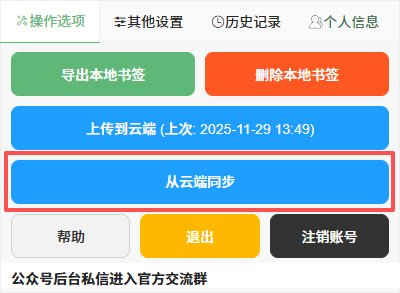
⚡ Step 2: Confirm Sync Operation
Pre-sync Preparation
| Check Item | Requirement | Description |
|---|---|---|
| 🌐 Network | Stable Connection | Ensure access to cloud services |
| 💾 Local Backup | Recommended | Prevent accidental data loss |
| 🔓 Account Status | Logged In | Confirm login status is normal |
Important Reminder
Sync operation will overwrite local bookmarks with cloud data. If you have important local bookmarks, please back them up first!
Sync Confirmation Dialog
After clicking sync, the system will display a confirmation dialog:
- 📋 Sync Scope Display: Number of bookmarks to be synced
- ⚠️ Overwrite Reminder: Reminder that local data will be overwritten
- ✅ Confirm Button: Click "Confirm" to start syncing
📥 Step 3: Execute Sync Process
Sync Progress Display
| Stage | Status Description | Estimated Time |
|---|---|---|
| 🔌 Connect to Cloud | Connecting to server | 1-3 seconds |
| 📥 Download Data | Getting cloud bookmarks | 3-10 seconds |
| 🔍 Data Validation | Verifying data integrity | 1-2 seconds |
| ✅ Sync Complete | Bookmarks updated | Instant display |
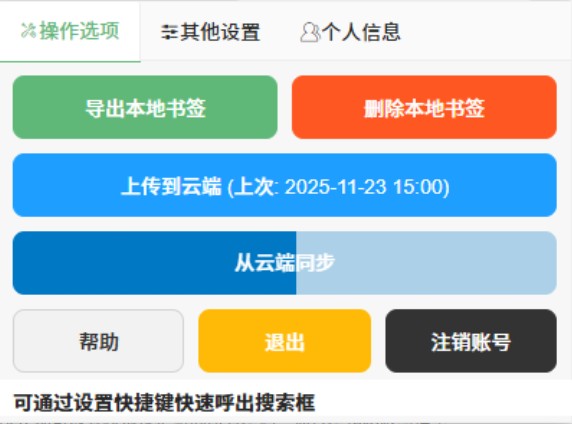
Sync Process
The extension does not need to remain active during the sync process
🎯 Sync Usage Scenarios
💻 Common Use Cases
| Scenario | Operation Recommendation | Notes |
|---|---|---|
| 🆕 New Device Setup | Direct sync | Ensure stable network |
| 🔄 Regular Syncing | Sync weekly | Keep data up-to-date |
| 📱 Multi-device Use | Alternate syncing between devices | Avoid simultaneous operations |
| 🛠️ Data Recovery | Emergency sync use | Prioritize backing up current data |
⚠️ Important Security Reminders
🔐 Sync Security Guidelines
Important Warning
- ❌ Sync is an overwrite operation - Local bookmarks will be replaced
- ❌ Irreversible - Cannot automatically restore local data after sync
- ✅ Backup before sync - Protect important local bookmarks
🛡️ Security Best Practices
- 🔄 Regular Backups: Back up important local bookmarks before syncing
- 🌐 Network Environment: Sync in a secure and stable network environment
- 📱 Device Management: Avoid simultaneous operations on multiple devices
- 🔍 Data Validation: Check important bookmarks are complete after sync
🆘 Frequently Asked Questions
| Problem | Solution |
|---|---|
| 🚫 Sync Failed | Check network connection, re-login and retry |
| 🔄 Sync Stuck | Refresh page, check network and retry |
| 🔐 Data Inconsistency | Check backup times on each device, select latest version for sync |
🎉 After Successful Sync
✅ Verify Sync Results
- 📖 Open Bookmark Manager: Check if bookmarks are completely restored
- 🔍 Verify Important Bookmarks: Confirm key bookmarks are synced
- 📱 Other Device Confirmation: Verify consistency across multiple devices
- 🔄 Set Regular Syncing: Establish syncing habits
📋 Recommended Follow-up Actions
- 📤 Regular Backups: Establish backup habits
- 🔄 Multi-device Syncing: Keep data consistent across devices
- ⚙️ Check Settings: Confirm sync configuration is correct
- 📊 Data Management: Organize and optimize bookmark structure
Friendly Reminder
Proper use of sync functionality can keep your bookmarks perfectly consistent across all devices. If you encounter any sync issues, please feel free to contact us.
🔗 Related Links
- 📖 Backup Guide - How to backup local bookmarks
- 🗑️ Delete Local Bookmarks - Clean up local data
- 📧 Contact Us - Get technical support