Upload
Securely upload local bookmarks to the cloud for cross-device synchronization and permanent storage
📋 Why Upload Bookmarks?
| Benefit | Detailed Description |
|---|---|
| ☁️ Cloud Sync | Synchronize bookmarks across multiple devices, access anytime, anywhere |
| 💾 Permanent Storage | Prevent local data loss with cloud backup |
| 🔄 Real-time Updates | Automatically sync latest bookmark changes, maintain data consistency |
| 📱 Cross-platform Access | Support usage across different browsers and devices |
⚠️ Important Security Tips
- ✅ Account Login: Ensure you are properly logged into your UniSync account
- ✅ Stable Network: Recommended to upload in a stable network environment
- 💾 Data Backup: Export local backup before first upload
- 📊 Data Organization: Organize bookmark structure for easier management after upload
📝 Upload Bookmark Steps
Step 1: Open Extension
-
Click the UniSync icon in the upper right corner of your browser
-
In the popup window, ensure you are logged into your account
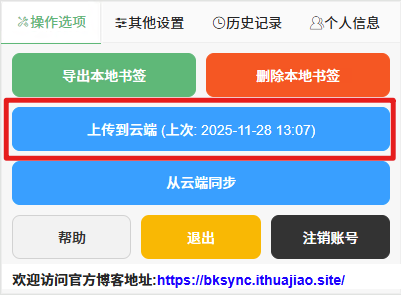
Step 2: Switch to Operations Tab
- Click the "Operations" icon in the top menu
- You will see several operation buttons
Step 3: Click Upload Button
- Find the blue "Upload to Cloud" button
- Click this button to start the upload process
Step 4: Wait for Upload Completion
| Upload Process | Status Description |
|---|---|
| 🔄 Data Retrieval | System automatically retrieves all bookmarks from your browser |
| 📦 Data Compression | Bookmark data is compressed and uploaded to the server |
| ✅ Upload Complete | Success notification displayed after upload completion |
🔧 Upload Process Details
Frontend Processing Flow
| Processing Step | Technical Implementation |
|---|---|
| 🖱️ User Action | When clicking "Upload to Cloud", extension records current time |
| 📨 Message Passing | Send upload message to background script |
| 📂 Data Collection | Background script retrieves all bookmark data |
Data Processing Mechanism
| Processing Stage | Specific Operations |
|---|---|
| 🔄 Format Conversion | Bookmark data converted to JSON format |
| 📦 Compression Optimization | Automatic gzip compression for large data volumes |
| 🏷️ Identity Tagging | Add user identity and browser information |
Server-side Processing
| Processing Module | Function Description |
|---|---|
| 📥 Data Reception | Server receives bookmark data |
| 🔍 Duplicate Detection | Check for duplicate data (based on title and content) |
| 🏷️ Version Management | Assign version numbers to data |
⚠️ Important Considerations
Pre-upload Checklist
- Ensure logged into correct UniSync account
- Check if network connection is stable
- Important bookmarks backed up locally
- Understand upload will overwrite existing cloud data
Service Limitations
| Limitation Type | Free Users | Paid Users |
|---|---|---|
| ⏰ Data Retention | 30 days | Permanent storage |
| 📊 Data Size Limit | Basic capacity | Extended capacity |
Browser Compatibility
| Browser | Support Status | Recommendation Index |
|---|---|---|
| 🌐 Chrome | ✅ Full support | ⭐⭐⭐⭐⭐ |
| 🟦 Edge | ✅ Full support | ⭐⭐⭐⭐⭐ |
| 🍎 Safari | ✅ Full support | ⭐⭐⭐⭐⭐ |
🔄 Auto Sync Settings
Enable Auto Sync
If you want to automatically upload bookmarks, you can in the "Settings" tab:
| Setting Option | Recommended Configuration |
|---|---|
| 🔛 Auto Sync Function | Enable |
| ⏰ Sync Interval | 5-60 minutes (recommended 15 minutes) |
| 📊 Sync Scope | All bookmarks |
Auto Sync Advantages
- 🚀 Real-time: Bookmark changes immediately synced to cloud
- 💾 Security: Multiple backup mechanisms prevent data loss
- 🔄 Consistency: Maintain data sync across multiple devices
- ⚡ Efficiency: Smart incremental sync saves bandwidth
❓ Frequently Asked Questions
Q: What to do if upload fails?
A: Please follow these troubleshooting steps:
- Check if network connection is stable
- Ensure proper account login
- Clear browser cache and retry
- Contact technical support for assistance
Q: How to know if upload was successful?
A: Success indicators:
- Upload button shows last upload time
- Interface displays success notification
- Cloud data updates in real-time
Q: Can I sync across different browsers?
A: ✅ Fully supported:
- UniSync supports bookmark synchronization between Chrome, Edge, and other browsers
- Use same account to achieve cross-browser sync
- Bookmark structure and tags are completely preserved
Q: Will upload delete local bookmarks?
A: ❌ No deletion:
- Upload is a copy operation, doesn't affect local bookmarks
- Local bookmarks remain completely intact
- Can download or sync from cloud anytime
💡 Best Practice Recommendations
Upload Timing Recommendations
| Timing | Recommendation Index | Description |
|---|---|---|
| 🌐 When network is stable | ⭐⭐⭐⭐⭐ | Avoid upload interruption |
| 📅 Regular maintenance | ⭐⭐⭐⭐ | Recommend weekly uploads |
| 🎯 After important changes | ⭐⭐⭐⭐⭐ | Upload immediately after organization |
| 🔄 Before cross-device use | ⭐⭐⭐⭐ | Ensure data synchronization |
Data Management Strategy
- 📂 Categorized Organization: Organize bookmarks by purpose for easier management
- 🏷️ Tag Management: Use tag system for quick location
- 📊 Regular Cleanup: Delete invalid and duplicate bookmarks
- 💾 Multiple Backups: Dual protection with cloud + local
🚀 Advanced Usage Tips
Batch Upload Optimization
- 📦 Batch Upload: Large bookmark collections can be uploaded in batches to improve success rate
- 🔄 Incremental Sync: Only upload changed portions to save time and bandwidth
- 📊 Progress Monitoring: Monitor upload progress to ensure completion
Team Collaboration Features
- 👥 Shared Bookmarks: Support team members sharing specific bookmark categories
- 📝 Collaborative Editing: Multiple users collaborate on managing bookmark structure
- 🔒 Permission Control: Set different access levels for team members
Regular bookmark uploads are an important guarantee for data security! We recommend establishing regular upload habits to ensure important bookmarks are never lost. For any upload issues, please feel free to contact our technical support team.