Export
Export browser bookmarks to local files for secure backup and convenient migration
📋 Why Export Bookmarks?
| Reason | Detailed Description |
|---|---|
| 💾 Local Backup | Save bookmarks to local computer files to prevent data loss |
| 🔄 Data Security | Prevent accidental loss of important bookmarks with multiple safeguards |
| 📦 Migration Preparation | Facilitate quick recovery when changing browsers or reinstalling systems |
📄 Export File Format
| Feature | Description |
|---|---|
| 🗂️ File Format | HTML file with strong compatibility |
| 🌐 Compatibility | Supported by all mainstream browsers for import |
| 📂 Content | Complete preservation of all bookmarks + folder structure |
⚠️ Important Security Tips
- ✅ No Original Deletion: Export is a copy operation, doesn't affect bookmarks in browser
- ✅ Completely Offline: No network connection required, more secure data
- 💾 Recommend Regular Backups: Develop good habits of regular exports
📝 Operation Steps
Step 1: Access Export Interface
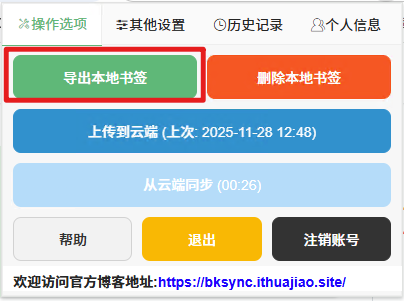
- Click the extension icon in the upper right corner of your browser
- Select "Bookmark Management" or "Backup & Restore"
- Click the "Export Bookmarks to Local" option
Step 2: Configure Export Options
The system will display the export settings window:
| Setting Option | Detailed Description |
|---|---|
| 📊 Export Range | ✅ All bookmarks (recommended) ✅ Only selected folders |
| 📝 File Naming | Default: BookmarkBackup_YYYYMMDD.html Customizable: e.g., WorkBookmarks_2024.html |
| 📍 Save Location | Recommend choosing an easily accessible location |
Step 3: Execute Export
- Click the "Start Export" button
- Choose save location:
- 🖥️ Desktop
- 📁 Documents folder
- 💾 Dedicated backup folder
- Click "Save"
Step 4: Export Complete
- Display "Export Successful" notification
- Display detailed export information:
| Export Information | Description |
|---|---|
| 📊 Bookmark Count | X bookmarks successfully exported |
| 📂 Folder Count | Y folder structures completely preserved |
| 💿 File Size | Approx. Z KB, takes up very little space |
| 📍 Save Location | Complete path display for easy finding |
🔄 Restore Bookmarks from Backup File
Method 1: Import via Browser Native Function (Recommended)
Chrome Browser Recovery Steps:
-
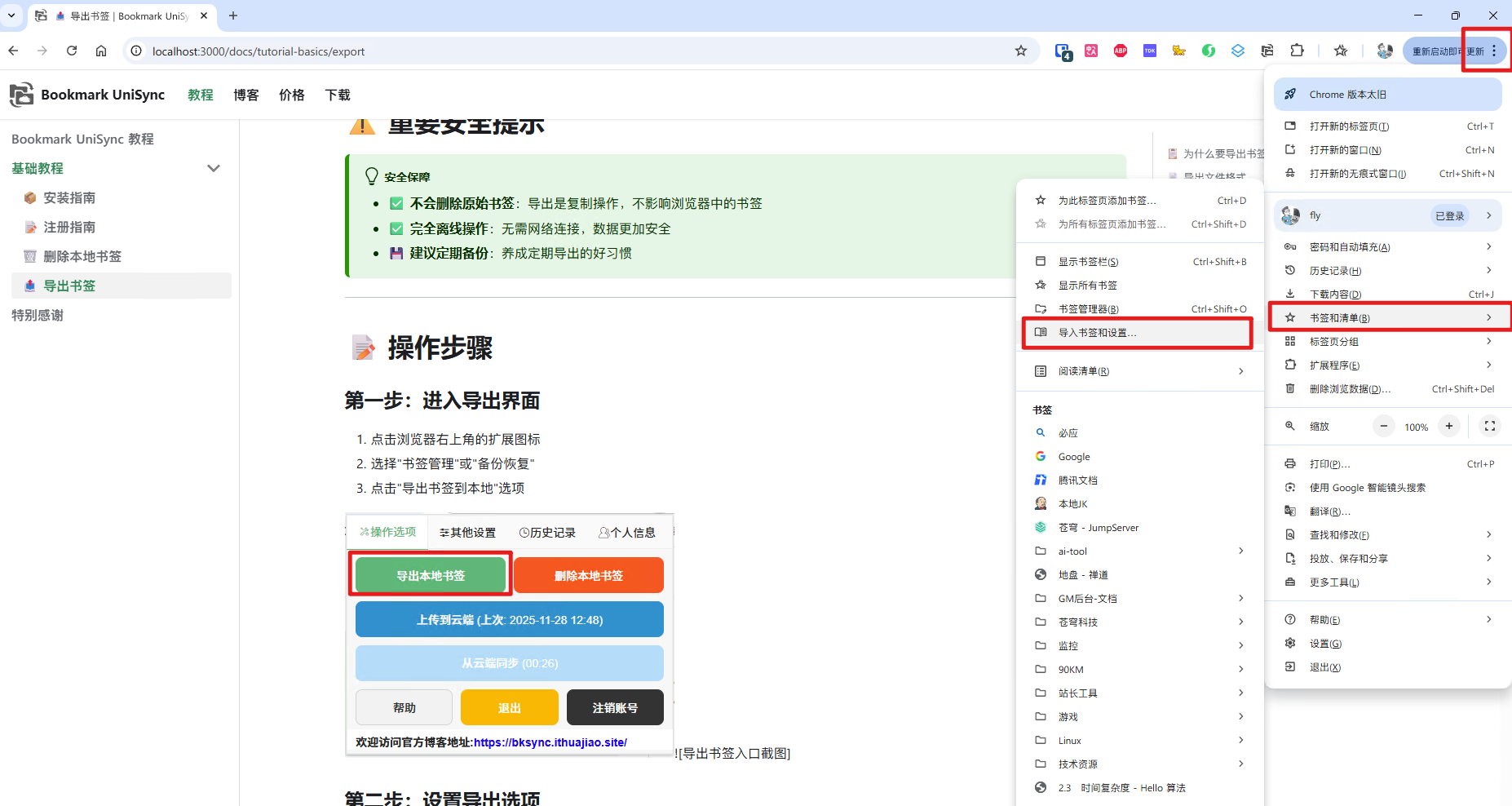
Click the three dots in the upper right corner → Bookmarks → Import bookmarks and settings
-
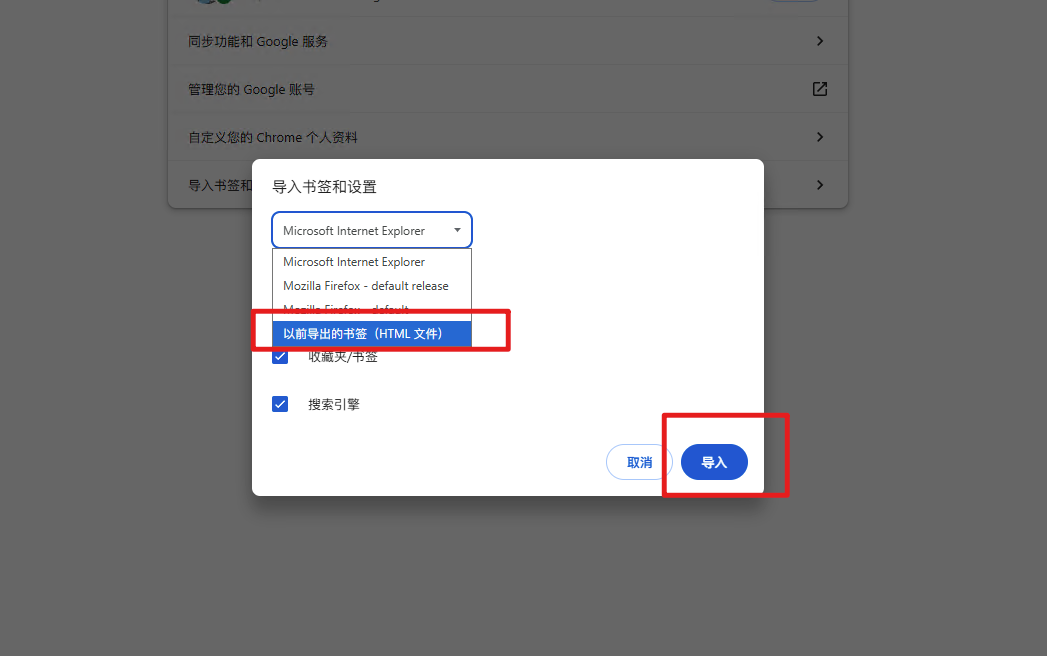
Select Bookmark HTML file
-
Click select file to find the previously exported .html backup file
-
Click open, bookmarks will be imported automatically
-
Success notification will appear after import completion
Edge Browser Recovery Steps:
-
Click the three dots in the upper right corner → Favorites → Import favorites
-
Select From file → Favorites HTML file
-
Browse and select your bookmark backup file
-
Click open to start importing
-
Wait for import completion notification
Method 2: Import via Extension Function (if supported)
If the extension supports import functionality:
- Access the extension's "Backup & Restore" interface
- Click "Import Bookmarks from File"
- Select the previously exported .html file
- Confirm import
⚠️ Important Considerations
Pre-Export Checklist
- Confirm the bookmark range to export
- Choose appropriate save location
- Give the file an easily recognizable name
- Ensure sufficient disk space
File Security Management Strategy
| Storage Strategy | Specific Measures | Security Level |
|---|---|---|
| 🏠 Local Storage | Dedicated folder on computer hard drive | ⭐⭐⭐ |
| 🔄 Multiple Backups | Computer + USB Drive + Cloud Storage | ⭐⭐⭐⭐⭐ |
| 📅 Regular Updates | Export latest version monthly | ⭐⭐⭐⭐ |
| 🏷️ Version Management | Name by date, keep multiple historical versions | ⭐⭐⭐⭐ |
❓ Frequently Asked Questions
Q: Can the exported HTML file be edited?
A: ✅ Yes, but manual modification is not recommended as it may affect import
Q: Do exported bookmarks include folder structure?
A: ✅ Yes, the original folder hierarchy is completely preserved
Q: Will importing create duplicate bookmarks?
A: Browsers usually deduplicate automatically, but it's recommended to:
- Clean up duplicate bookmarks before importing
- Or import to a new folder
Q: How large is the export file?
A: Usually very small:
- 1000 bookmarks ≈ 100-500KB
- Won't take up much space
💡 Best Practice Recommendations
Backup Frequency Recommendations
| Frequency | Applicable Scenario | Recommendation Index |
|---|---|---|
| 🔄 Weekly | Important project bookmarks | ⭐⭐⭐⭐⭐ |
| 📅 Monthly | Complete backup of all bookmarks | ⭐⭐⭐⭐ |
| 🎯 On-Demand | Immediately after major changes | ⭐⭐⭐⭐⭐ |
File Naming Convention
Recommended format:
BookmarkBackup_20241201.html    # General format
WorkBookmarks_20241201.html     # Categorized backup
PersonalCollection_20241201.html # Categorized backup
ProjectBookmarks_20241201.html  # Categorized backup
Recovery Testing Recommendations
- 🧪 Regular Testing: Quarterly test if backup files can be imported normally
- 🔍 File Integrity: Ensure backup files are not corrupted
- ✅ Import Verification: Verify bookmark integrity after import
🚀 Advanced Usage Tips
Batch Export Strategy
- 📂 Categorized Export: Export separately by work, personal, projects, etc.
- 📅 Time Segmentation: Export separately by month or quarter for version management
- 🏷️ Tag Management: Add tags to filenames for quick identification
Automated Backup
- 🤖 Scheduled Scripts: Set up scheduled tasks for automatic exports
- ☁️ Cloud Sync: Sync backup folders to cloud storage
- 📱 Mobile Backup: Regularly copy to mobile storage devices
Properly safeguarding your bookmark backup files is an important guarantee for data security! It's recommended to adopt multiple backup strategies to ensure important bookmarks are never lost. For any export issues, please feel free to contact us.